4. Web Interface Configuration
The Morse Trainer includes a built-in web server that allows you to configure all settings via a web browser on your computer, phone, or tablet. This is especially useful for initial setup and detailed configuration.
4.1. Access Point Mode (First Time Setup)
When you first power on your Morse Trainer, or if it cannot connect to a WiFi network, it automatically enters Access Point (AP) Mode.
What is AP Mode?
In AP mode, the Morse Trainer creates its own WiFi network that you can connect to directly. This allows you to configure the device even without an existing WiFi network.
Connecting to AP Mode
Power on the Morse Trainer
Look for the WiFi network on your device:
Network name:
MorseTrainer-XXXXXX(where XXXXXX is part of the device's MAC address)Password:
morsetrainer
Connect your computer/phone/tablet to this network
Open a web browser and navigate to:
Recommended:
http://morsetrainer.local(works on most devices)Alternative:
http://192.168.4.1(always works)
You should see the Morse Trainer web interface
Note
While in AP mode, your device will not have internet access. The Morse Trainer is acting as a router, not providing internet connectivity.
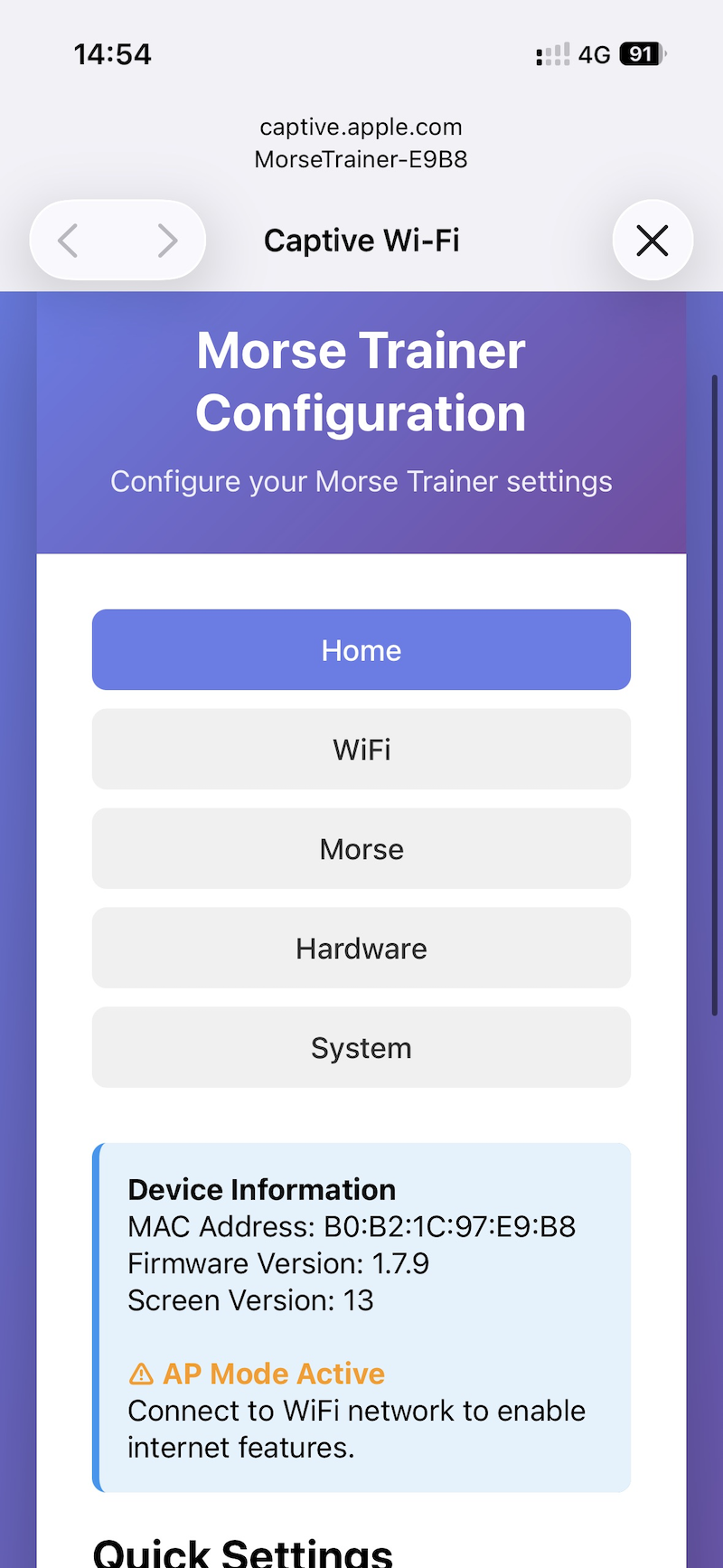
Morse Trainer in AP Mode
Initial Configuration in AP Mode
Once connected, you should:
Navigate to the WiFi Configuration page
Enter your WiFi network's SSID and password
Save the settings
The device will reboot and attempt to connect to your WiFi network
4.2. Station Mode (Normal Operation)
Once configured, the Morse Trainer will connect to your WiFi network in Station (STA) Mode. In this mode, the device connects to your existing WiFi network just like any other device (laptop, phone, etc.).
Finding the Device IP Address
After connecting to your WiFi network, you need to find the device's IP address:
- Method 1: Check the About Screen
The IP address is displayed on the About screen (accessible from the main page)
Shows the local IP in Station mode,
192.168.4.1in AP mode, orNo WiFiif not connected
- Method 2: Check Serial Console
Connect via USB
Serial monitor will show:
Connected to Wififollowed byIP: xxx.xxx.xxx.xxx
- Method 3: Use mDNS (Recommended)
Open a web browser
Navigate to
http://morsetrainer.localWorks on most devices (macOS, iOS, Linux, Android)
Windows users need Bonjour Print Services installed
- Method 4: Check Your Router
Log into your router's admin panel
Look for connected devices
Find device named "morsetrainer"
Accessing the Web Interface in Station Mode
Open a web browser on any device connected to the same WiFi network
Navigate to the device using one of these methods:
Recommended:
http://morsetrainer.local(works on most devices)Alternative:
http://[device-ip-address](example:http://192.168.1.100)
The web interface home page will load

Web Interface Home Page
4.3. Web Interface Pages
4.3.1. Home Page
URL: /
The home page displays:
Device information (MAC address, firmware version, screen version)
Quick navigation to all configuration pages
Current device status
Available Quick Links:
WiFi Configuration
Morse Configuration
Hardware Configuration
System Settings
4.3.2. WiFi Configuration
URL: /wifi
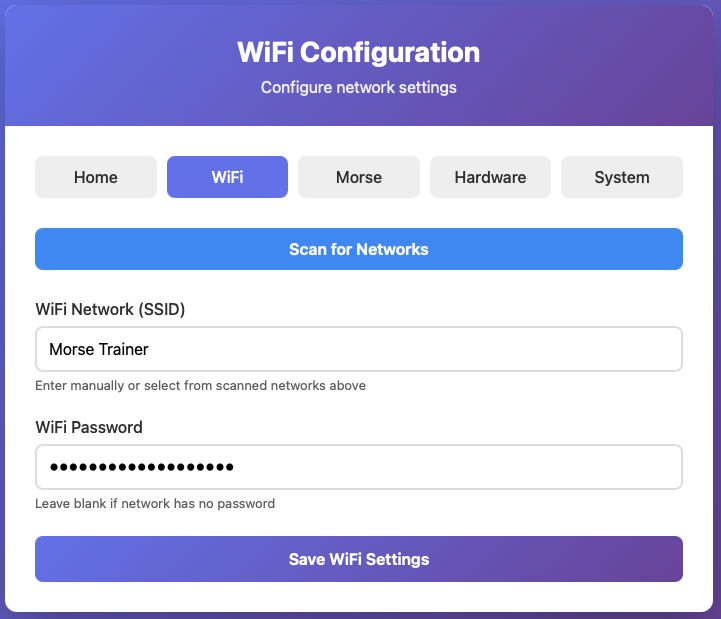
Configure network connectivity:
Settings:
SSID: Your WiFi network name
Password: Your WiFi network password
After Saving:
Settings are saved to persistent memory
Device will reboot
Attempts to connect to the specified network
If connection fails, device returns to AP mode
Note
Make sure to enter the SSID and password correctly. If the device cannot connect, it will fall back to AP mode after ~100 connection attempts.
4.3.3. Morse Configuration
URL: /morse
Configure morse code timing and game settings:
Settings:
WPM (Words Per Minute): 5-60 WPM
Speed of morse code playback
Farnsworth Spacing: 50-2000ms
Extra spacing between characters for learning. Higher values give more time to process each character.
ELIZA Response Delay: 5-60 seconds
Time to wait after your last morse input before ELIZA responds in QSO mode
Paddle Hand: Right Hand / Left Hand
Swap DOT and DASH paddle assignments for left-handed operation
Spaces: Enable/disable automatic space insertion
Adds spaces when pause between characters is long enough
Extra Characters: Enable/disable extended character set
Includes punctuation and special characters beyond standard alphanumeric
All settings save immediately and persist across reboots.
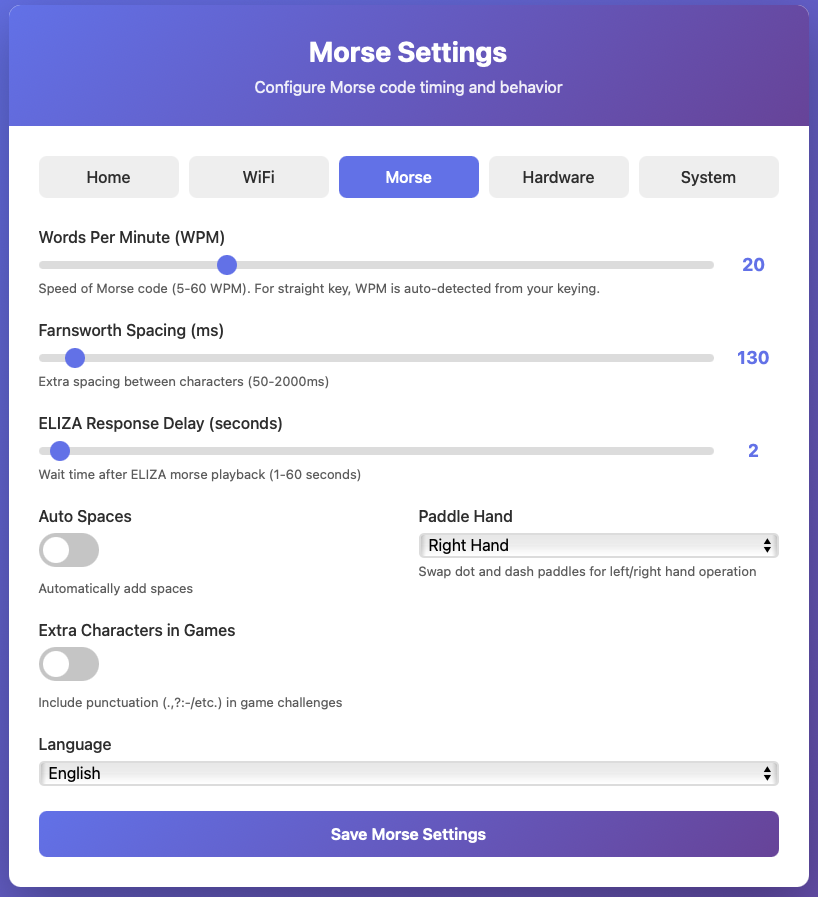
Morse Configuration Page
4.3.4. Practice Text
URL: /practice
Configure custom practice text for the Listen and Send Letters games.
Settings:
Practice Text: A text area where you can paste or type your own practice words and sentences. Words are separated by spaces or newlines.
Use Custom Text: Toggle to enable or disable custom text mode.
When enabled, the Listen and Send Letters games pick random words from your practice text instead of generating random character strings. Up to 200 words are stored on the device.
Usage Tips:
Paste callsigns, common QSO phrases, or vocabulary you want to practice
Text is automatically converted to uppercase
Each word is picked randomly — longer texts give more variety
Disable the toggle to return to random character generation at any time
Factory reset clears the practice text
Note
Practice text is stored in the device's internal preferences memory. No external storage or filesystem is required.
4.3.5. Hardware Configuration
URL: /hardware
Configure physical hardware settings organized into four main sections:
Master Sound Control
These settings affect all audio outputs (both internal buzzer and 3.5mm jack):
Sound Enable: Toggle audio on/off
Master mute control for silent operation. Disables both the internal buzzer and 3.5mm jack audio output.
Tone: 0-11 (C through B)
Musical note for morse audio (passive buzzer only)
0 = C
1 = C#
2 = D
3 = Eb
4 = E
5 = F
6 = F#
7 = G
8 = G#
9 = A (440 Hz - standard pitch)
10 = Bb
11 = B
Octave: 1-8
Octave range for the selected tone
Lower (1-3): Deeper tones
Middle (4-5): Standard, pleasant for extended use
Higher (6-8): Brighter, more cutting tones
Note
Tone and Octave settings apply to both passive buzzer and 3.5mm audio output. Active buzzers have a fixed frequency.
Key Input
Key Type: Paddle / Straight Key
Select input device type
Output Configuration
Configure the 3.5mm jack output behavior:
Paddle Output: Enable/disable separate dash output on ring contact
When enabled, the dash paddle contact triggers output on the ring contact of the 3.5mm jack (for separate dot/dash LED indicators).
Audio Output: Enable/disable audio tone generation on 3.5mm jack
When enabled, the 3.5mm jack outputs audio tones instead of key signals. Use this to connect external speakers or headphones.
3.5mm Jack Volume: 0-100%
Volume control for audio output on the 3.5mm jack. Only applies when Audio Output is enabled.
0% = Silent
50% = Default balanced volume
100% = Maximum volume
Note
The 3.5mm jack can operate in two modes:
Key Output Mode (Audio Output disabled): Provides digital key signals for external keying circuits or LED indicators
Audio Mode (Audio Output enabled): Provides PWM audio tones for speakers or headphones
Buzzer Volume
Internal Buzzer Volume: 0-100%
Volume control for the device's internal buzzer, independent of the 3.5mm jack volume.
0% = Silent
50% = Default balanced volume
100% = Maximum volume
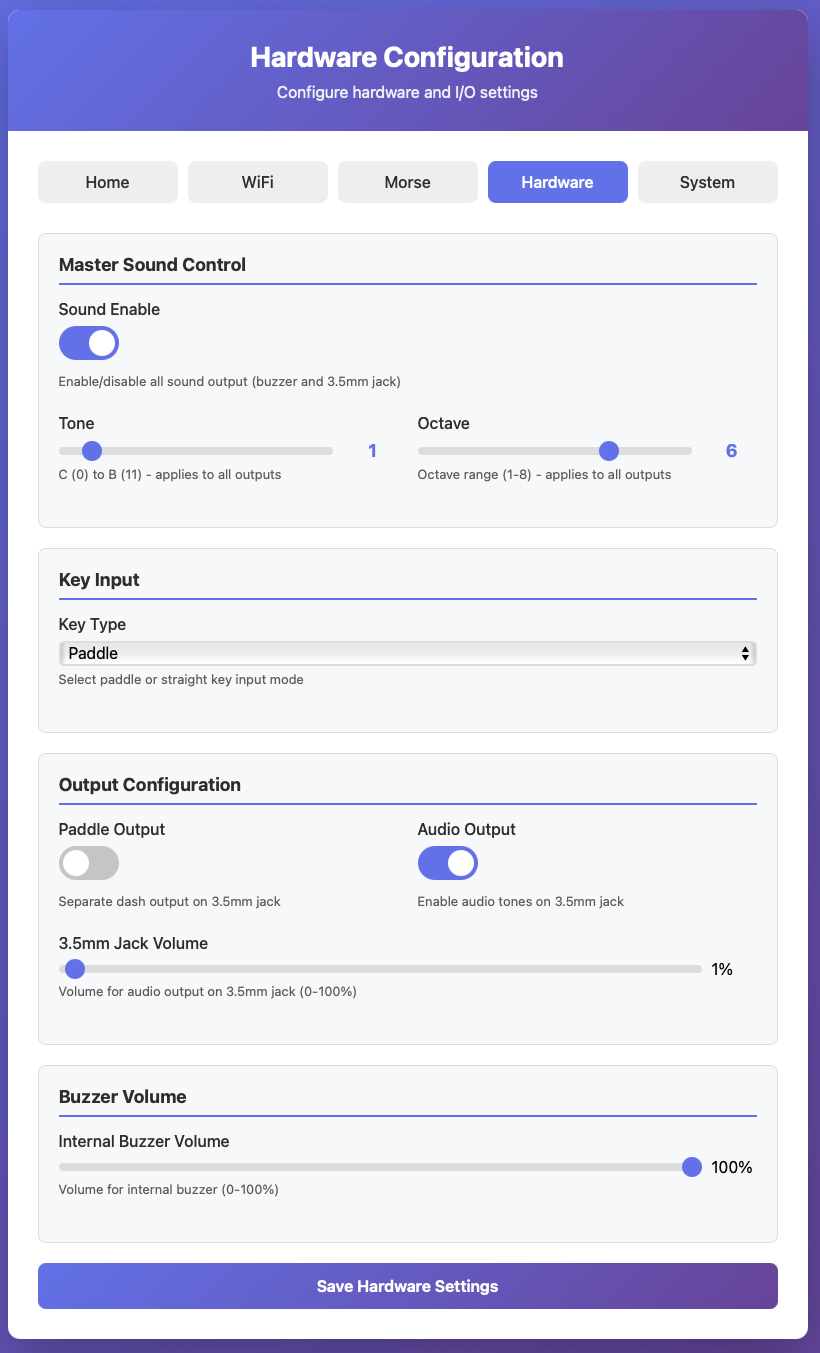
Hardware Configuration Page
4.3.6. System Settings
URL: /system
Advanced system operations:
Available Actions:
Check for Firmware Update
(Only visible when connected to WiFi, not in AP mode)
Checks server for firmware updates
Downloads and installs automatically
Device reboots after successful update
Warning: Requires internet connection and adequate battery
Factory Reset
Resets ALL settings to defaults
Clears WiFi credentials
Clears all preferences
Device reboots after reset
Cannot be undone
Reboot Device
Restarts the device
All settings are preserved
Useful for applying certain changes or troubleshooting
Danger
Always ensure the device has adequate battery power or is plugged in during firmware updates or factory resets.
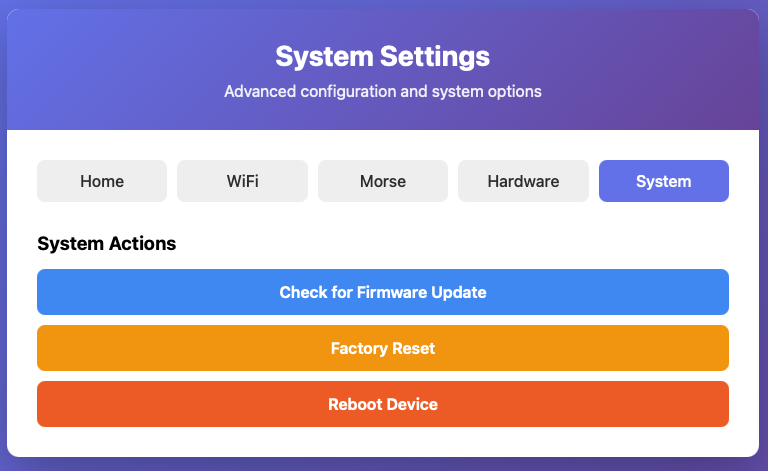
System Settings Page
4.4. Troubleshooting
4.4.1. Cannot Access Web Interface
Symptom: Browser shows "Cannot connect" or "Page not found"
Solutions:
Verify WiFi Connection
Check device is powered on
Verify WiFi credentials are correct
Check device WiFi LED status
Try mDNS First
Navigate to
http://morsetrainer.localWorks on most devices without IP lookup
If this fails, proceed to next step
Check IP Address
Confirm you're using the correct IP
Check serial console or router for IP
Scan network for the device
Verify Same Network
Your computer/phone must be on the same WiFi network
Cannot access from different network/subnet
Restart Device
Power cycle the Morse Trainer
Wait for WiFi connection to establish
Try accessing again
Fall Back to AP Mode
If all else fails, factory reset to start over
Device will enter AP mode automatically
4.4.2. Device Stuck in AP Mode
Symptom: Device always creates its own network, never connects to WiFi
Causes:
Incorrect WiFi password
WiFi network out of range
WiFi network on 5GHz (ESP32 only supports 2.4GHz)
Router MAC filtering enabled
Solutions:
Check WiFi Settings
Connect to AP mode
Navigate to WiFi Configuration
Verify SSID is exactly correct (case-sensitive)
Re-enter password carefully
Check Network Compatibility
Ensure network is 2.4GHz, not 5GHz
WPA2 security recommended
Open networks and WPA/WPA2 supported
Check Router Settings
Disable MAC filtering temporarily
Check if router is blocking new devices
Verify DHCP is enabled
Check Signal Strength
Move device closer to router
Check for interference
Try different channel on router
4.4.3. Web Page Not Loading Correctly
Symptom: Page loads but appears broken or incomplete
Solutions:
Clear Browser Cache
Hard refresh: Ctrl+F5 (Windows) or Cmd+Shift+R (Mac)
Clear cache and cookies
Try different browser
Check Connection Stability
WiFi signal may be weak
Try moving closer to device (AP mode) or router (Station mode)
Restart Web Server
Reboot the device
Wait for full startup
Try accessing again
4.4.4. Firmware Update Fails
Symptom: Update starts but fails to complete
Solutions:
Check Internet Connection
Verify router has internet access
Try accessing other websites
Device must be in Station mode, not AP mode
Check Battery Level
Ensure battery is charged above 50%
Better: plug in during update
Low battery can cause update failure
Check Server Availability
Update servers may be temporarily down
Try again later
Check for announcements
Use Serial Update Method
See Firmware Upgrade for alternative update methods
Can update via USB serial connection
4.4.5. Settings Not Saving
Symptom: Changes revert after reboot
Solutions:
Verify Save Operation
Click "Save" button after changes
Wait for confirmation message
Allow time for preferences to write
Check Storage
Preferences storage may be corrupted
Try factory reset
Reconfigure from scratch
Update Firmware
Older firmware may have bugs
Update to latest version
Check release notes for fixes
4.5. Advanced Usage
4.5.1. Multiple Devices
You can access multiple Morse Trainers on the same network:
Each device has a unique IP address
Each device has a unique AP mode name (based on MAC address)
Keep track of which IP belongs to which device
Consider setting static IP addresses in your router
4.5.2. Browser Compatibility
The web interface works with:
Chrome / Chromium (recommended)
Firefox
Safari
Edge
Mobile browsers (iOS Safari, Chrome Android)
Internet Explorer (basic support, may have issues)
4.5.3. Saving Bookmarks
For quick access:
Navigate to your device's IP address
Bookmark the page
Name it "Morse Trainer - [Device Name]"
Access anytime from bookmarks
Note
IP addresses may change if using DHCP. Consider setting a static IP reservation in your router for consistent access.
4.5.4. mDNS / Bonjour
The Morse Trainer includes full mDNS (multicast DNS) support for zero-configuration networking:
How to Use:
Access your device at:
http://morsetrainer.localNo need to find or remember IP addresses
Works automatically in both Station and AP modes
Advantages:
No IP address lookup needed
Works even if DHCP assigns different IP
Consistent access URL across network changes
Works with multiple Morse Trainers (each has unique name in AP mode)
Note
If http://morsetrainer.local doesn't work, fall back to IP address access methods described above. Some corporate or restricted networks may block mDNS traffic.
4.6. Security Considerations
Network Security:
The web interface has no password protection
Anyone on the same WiFi network can access and configure the device
Do not expose to untrusted networks
AP mode password is
morsetrainerby default
Recommendations:
Use a secure WiFi network with WPA2 encryption
Don't connect to public WiFi networks
Keep firmware updated for security patches
Data Privacy:
No personal data is collected or transmitted
Settings stored locally on device only
Firmware updates downloaded from official servers
No analytics or tracking
For additional help:
See also
Settings - On-device settings configuration
Firmware Upgrade - Firmware update procedures
Hardware - Hardware connections and setup